Reference
Easy
Updated September 2026
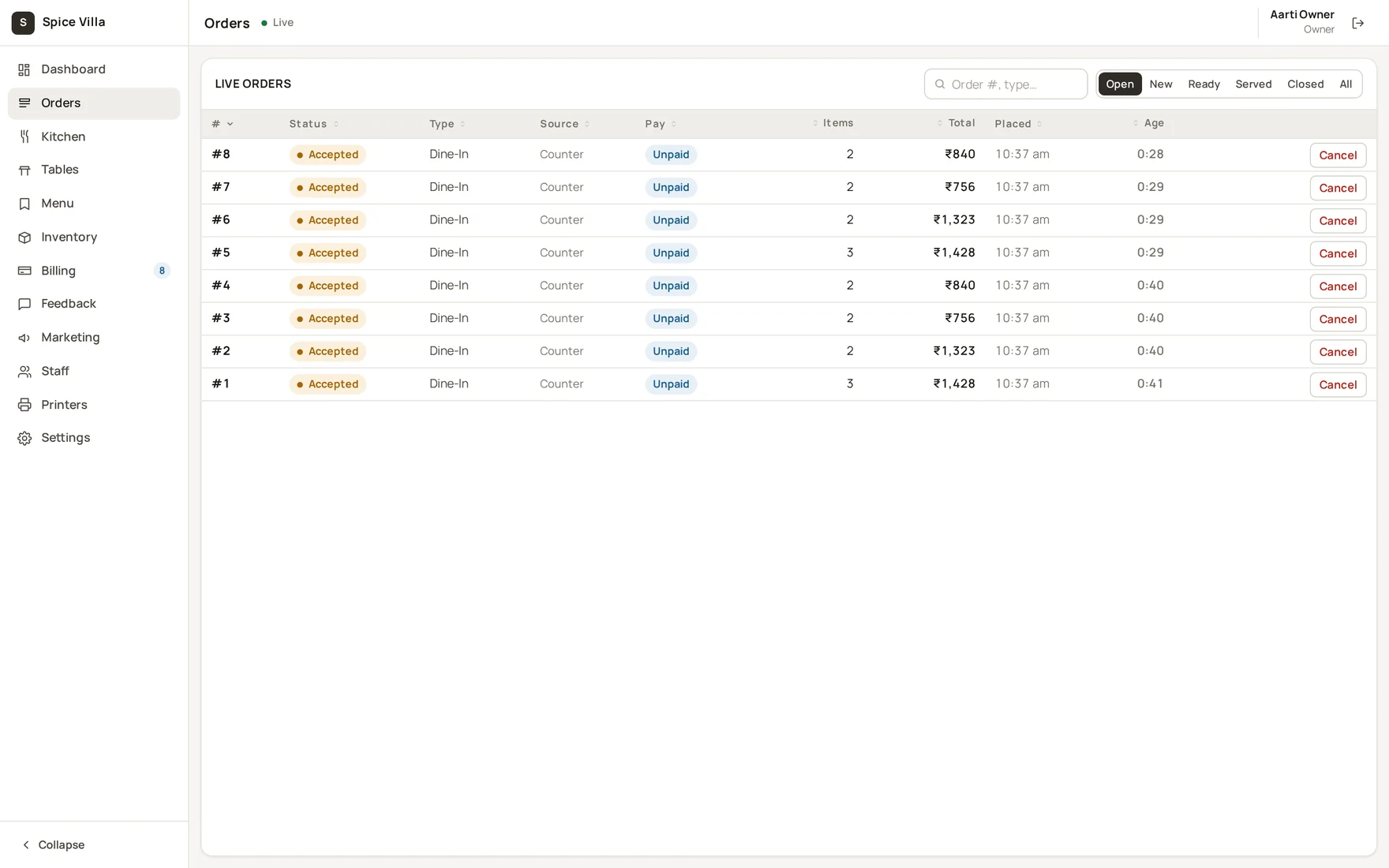
How an order flows through RestoQR
The life of an order from QR scan (or till tap) to a settled bill and a cleared table.
A QR (dine-in) order
- Guest scans the table QR code — the menu opens in their browser.
- Guest orders — items, variants, add-ons and notes go into a cart; the order is placed and the table shows as Ordered.
- Cashier approves — the order pops up full-screen in the till's approval queue. Accept sends it to the kitchen and prints the KOT; Reject asks for a reason, which is audited and shown to the guest.
- Kitchen cooks — tickets appear on the KDS; each item goes Start → Ready and ages visibly.
- Floor serves — the order is marked Served; the guest can order another round from the same QR — every round joins one table bill.
- Bill settles — the table appears in the till's collect queue (or Billing → To collect). The cashier takes payment by cash, UPI, card or wallet.
- Table clears — the cashier marks the table free from the same screen, ready for the next party.
A counter (walk-in) sale
- The cashier taps items on the till grid — the cart builds on the right.
- Takeaway: press Complete sale — the payment sheet opens, the cashier takes the money, change is shown large.
- Dine-in: pick the table and press Send to kitchen — the KOT prints and the table's bill stays open until settlement.
Note
Guests can also pay online from their phone while at the table — see Online payments. If they don't, the order simply shows Pay at counter and settles like any other bill.
What happens automatically on the way
- Stock deducts for accepted orders whose menu items have recipe lines — see Recipes.
- GST, service charge and rounding are applied to every bill from your outlet settings.
- Settlements roll up into Billing → Shift close-out, per method.
Was this helpful?