Guide
Easy
Cashier
Updated September 2026
New cashier? Start here
Your first shift on the RestoQR till: sign in, learn the screen, run a sale, take payment, close the day.
1 · Sign in
- Open the POS on the till device and sign in with your cashier account (email + password). The screen says: "Sign in with your cashier account to open the till."
- You did not get an account? Your owner invites you from Staff — you will receive an activation email to set your password (Activate your account).
2 · Learn the screen (2 minutes)
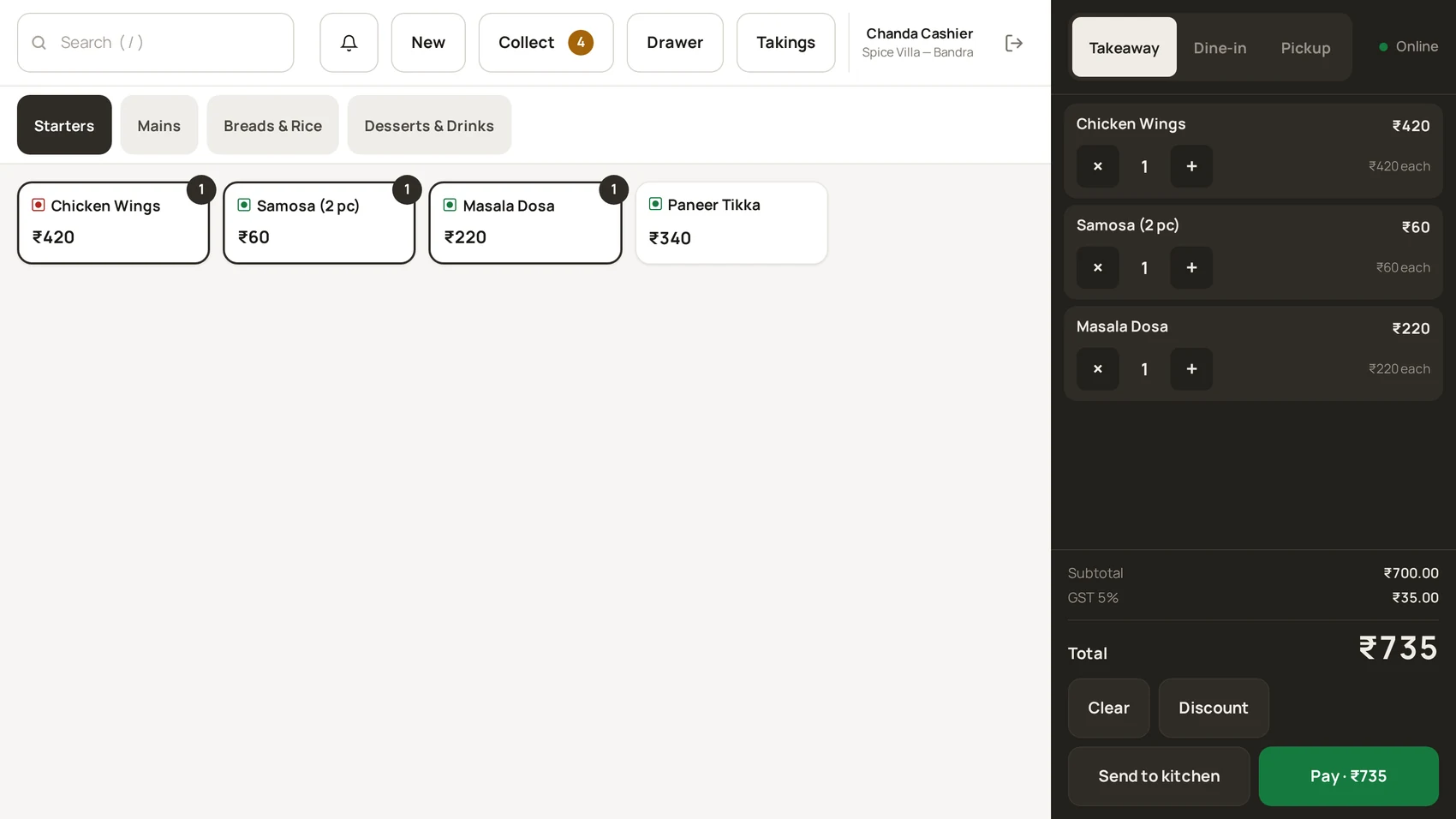
- Left: item grid. Search with the field (or press
/on a keyboard). Sold-out items hide automatically. - Right: the cart. Tap items to add; the bill total, GST and rounding update live.
- Top: table picker, Drawer (no-sale), Takings, notifications, sign out.
- Queues: "New orders" (QR orders to approve) and "To collect" (tables owing money) announce themselves.
3 · Your day in order
- Take walk-in sales — Create a sale.
- Send dine-in orders to the kitchen — same article, second flow.
- Approve QR orders when they pop up — Approval queue.
- Settle tables from the collect queue — Collect queue.
- Before you leave, check your takings — End of shift.
4 · When something goes wrong
- Payment trouble → Payment failed — read it before touching the payment again.
- Till not loading → POS is not loading.
- Anything else → Common problems.
Was this helpful?