The four screens of RestoQR
What each RestoQR screen looks like, who signs in where, and what each one is for.
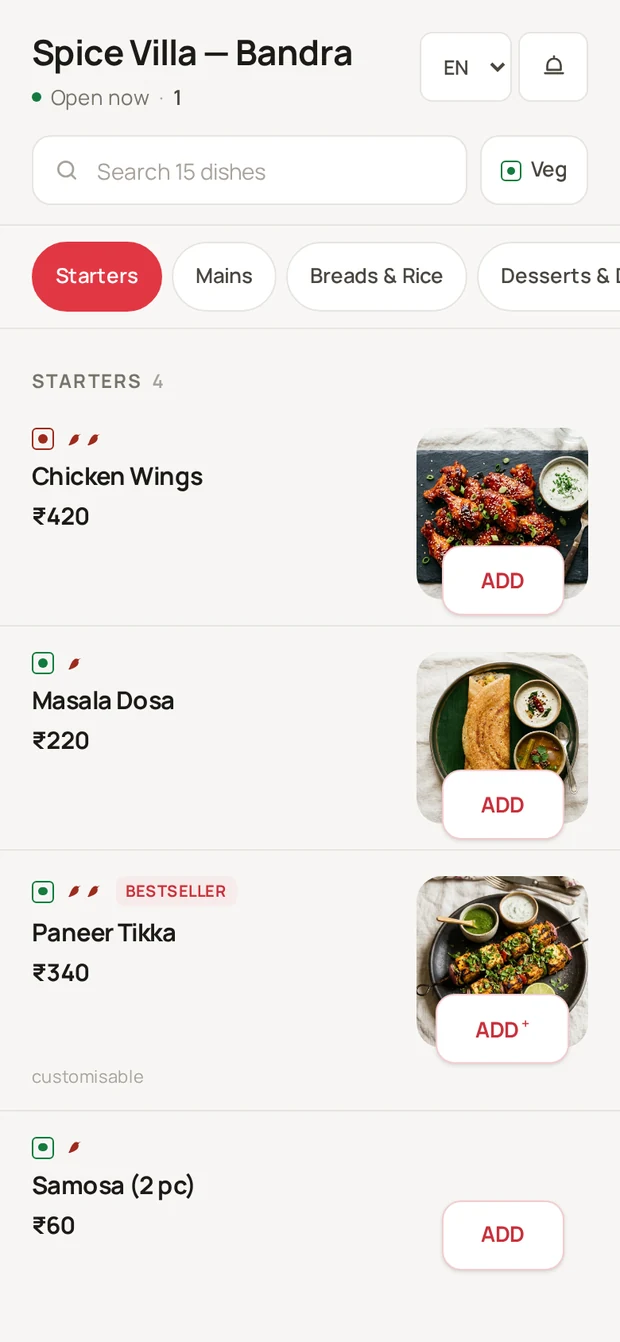
1 · Guest menu — the QR PWA
What a guest sees after scanning the table QR code. It opens in the phone browser — no app install, no login. Guests browse the live menu (photos, variants, add-ons, per-item notes), build a cart, place the order, track it, pay online or at the counter, and rate the meal afterwards.
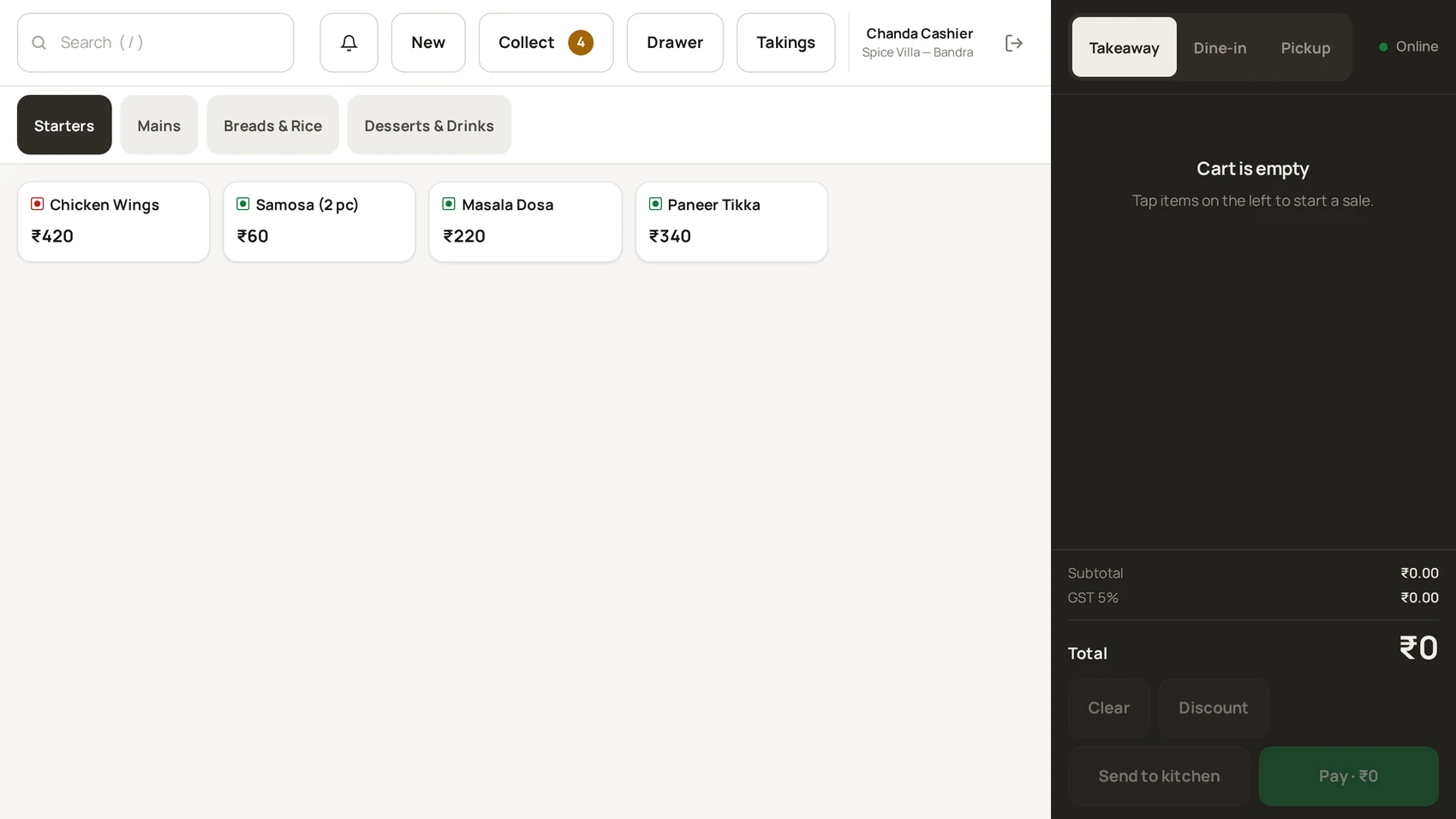
2 · Counter POS — the cashier till
A touchscreen terminal for cashiers. Items on a tile grid, the cart on a dark rail, payment on a fixed keypad screen. It handles walk-in sales, dine-in orders sent to the kitchen, the collect queue (tables owing money), and the approval queue (QR orders waiting for a human yes). Cashiers sign in with their own email and password.
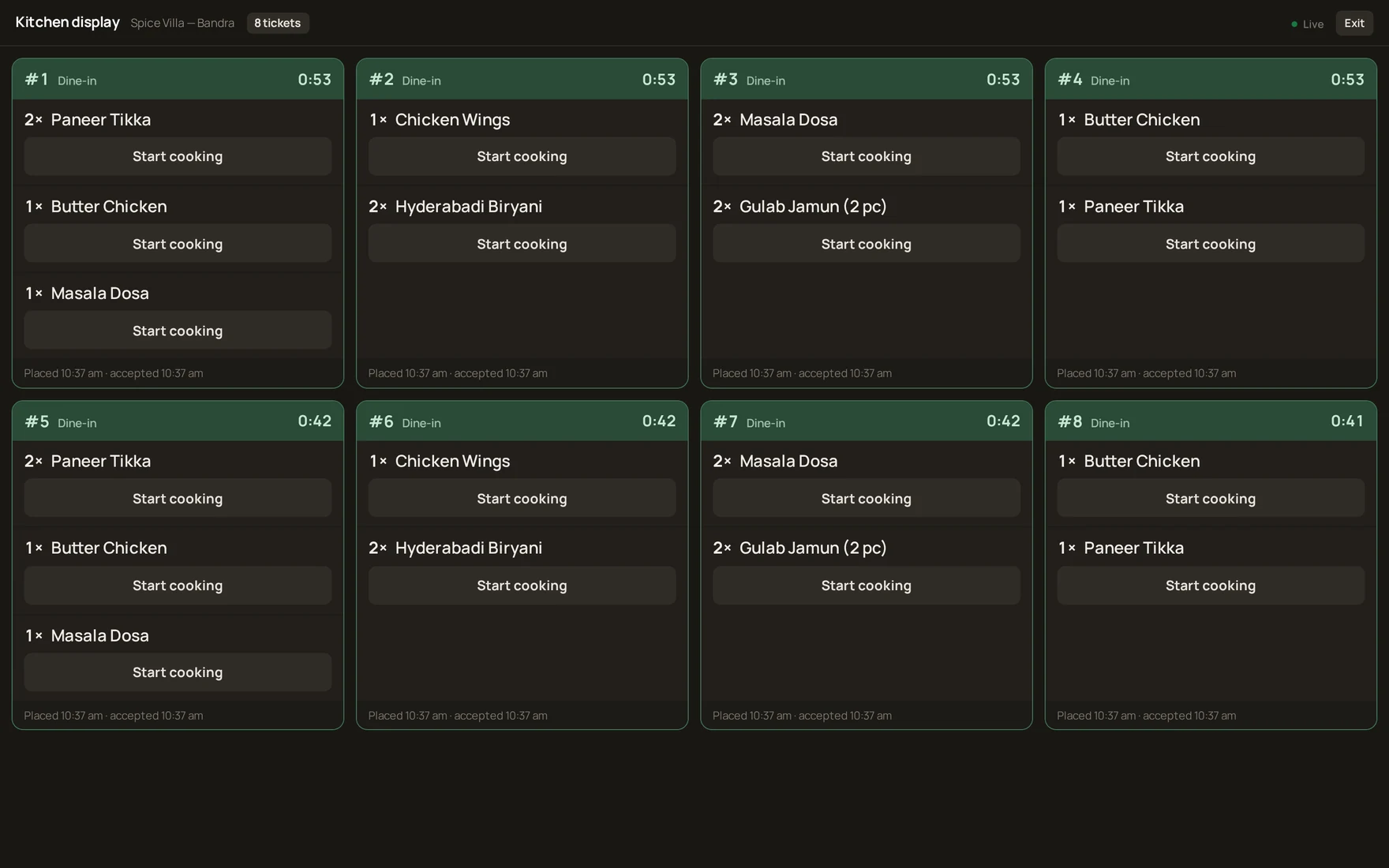
3 · Kitchen display (KDS) and bar display (BDS)
Full-bleed ticket screens for the kitchen and the bar — no sidebars, 40px+ buttons, two taps per item: Start → Ready. Cards escalate on age by themselves: amber after 8 minutes, red after 15. Kitchen staff sign in to the admin console and land straight on the display.
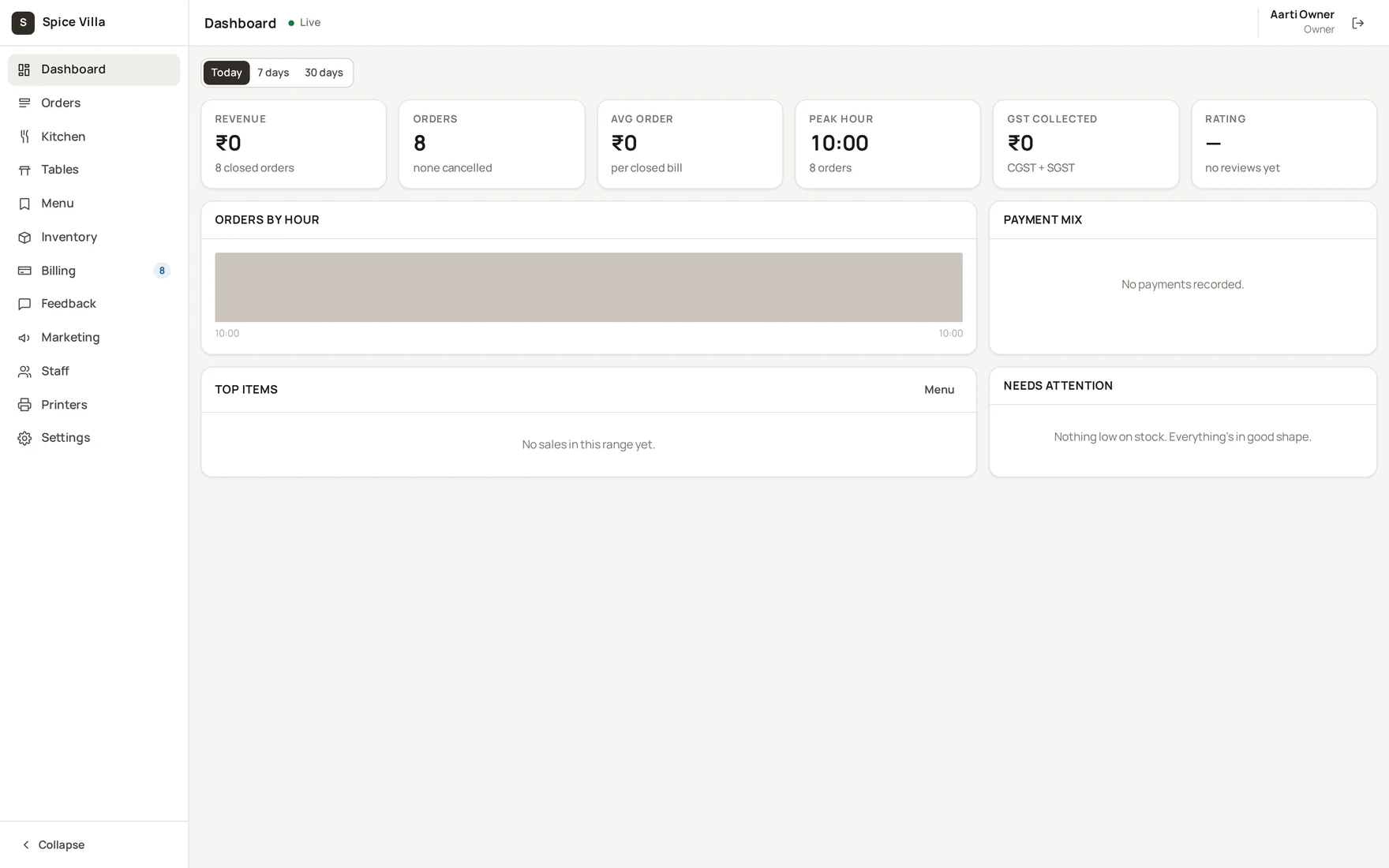
4 · Admin console
The back office. Owners and managers run the restaurant from here: Dashboard, Orders, Kitchen, Tables, Menu, Inventory, Billing, Feedback, Marketing, Staff, Printers, Settings. Waiters use it for orders and tables. What you see in the sidebar is decided by your role's permissions — the same set the server enforces.
Signing in to the right place
- Cashiers sign in at the POS with their cashier account — the login screen says "Sign in with your cashier account to open the till."
- Kitchen staff sign in to the admin console; they land on the kitchen display automatically.
- Owners and managers sign in to the admin console.
- Platform operators (RestoQR staff managing several restaurants) sign in with their platform operator account to open the platform console.
Note
Sign-in problems? See Sign-in problems and "You don't have access".
Was this helpful?