Guide
Medium
Restaurant Admin (Owner) · Manager
Updated September 2026
Set up a printer
Add thermal printers to RestoQR: what they print, how they connect, paper widths, and the test print.
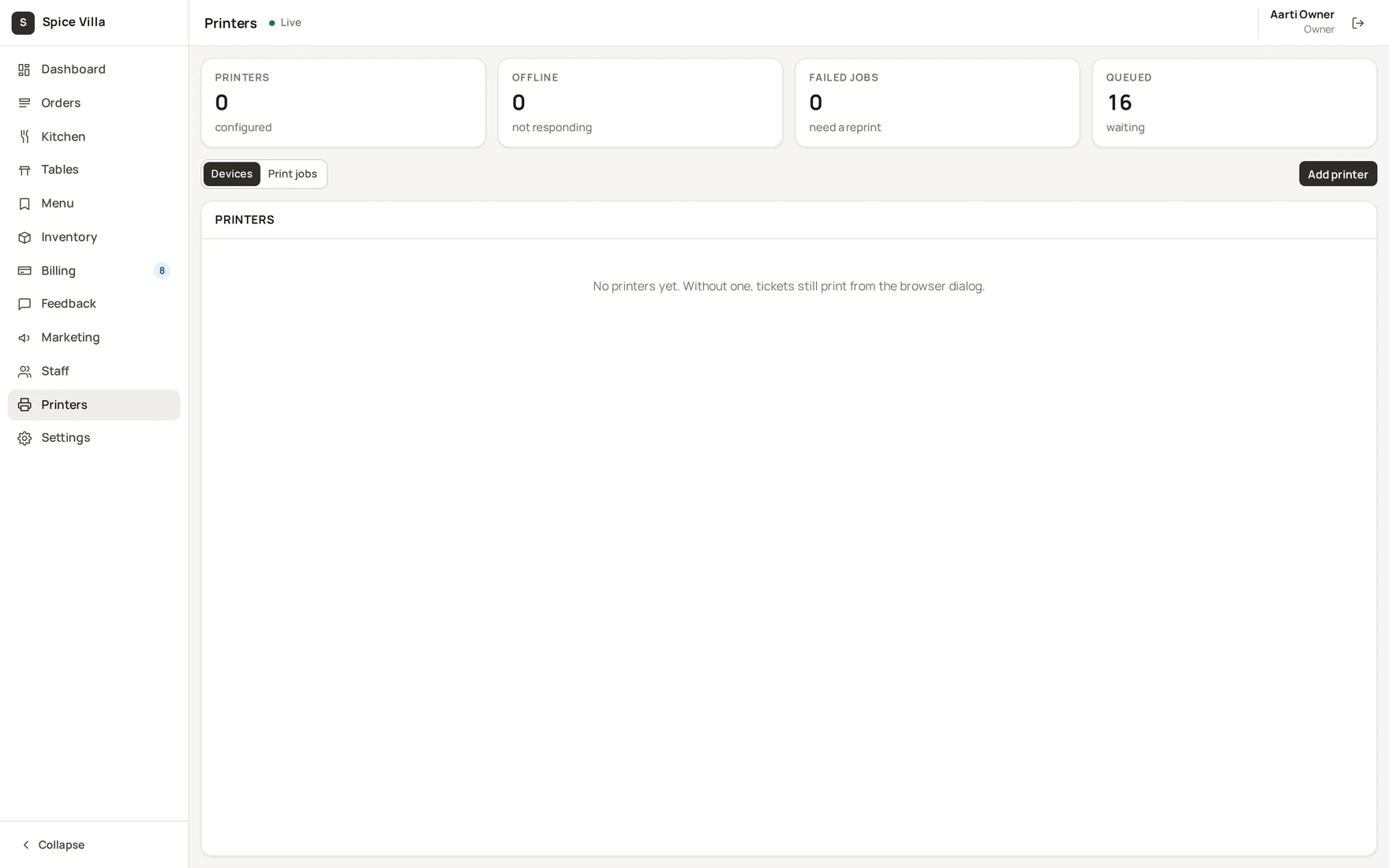
Add the device
- Admin console → Printers → add a device.
- Give it a name and pick what it prints: Kitchen ticket (KOT), Customer receipt, GST invoice, Label or Report.
- Pick the connection: Network (LAN, port 9100), USB (via till agent), Bluetooth (via till agent), Browser print dialog, Cloud relay, or Preview only.
- Pick the paper width: 58 mm (32 cols), 80 mm (48 cols) or A4 (80 cols).
- Save and press Test — "Test sent to <name>" means the job entered the spool; the page should come out of the device.
The till agent (USB, Bluetooth and LAN devices)
RestoQR prints to real hardware through a small print agent that runs inside your restaurant network (on the till PC, a kitchen PC or a Raspberry Pi next to the printers). It pulls jobs from the print spool and writes them to the device — claiming is exclusive, so two agents can never print the same KOT. Your RestoQR onboarding contact sets the agent up with you; it needs a staff account and the outlet it serves.
No hardware yet?
Use Browser print dialog or Preview only — the KOT/receipt renders for printing from the browser or just previews, so you can run the whole flow before hardware arrives.
Was this helpful?